
How to Convert PDF to Text (Free)
BunnyPDF Team
BunnyPDF Editorial Team
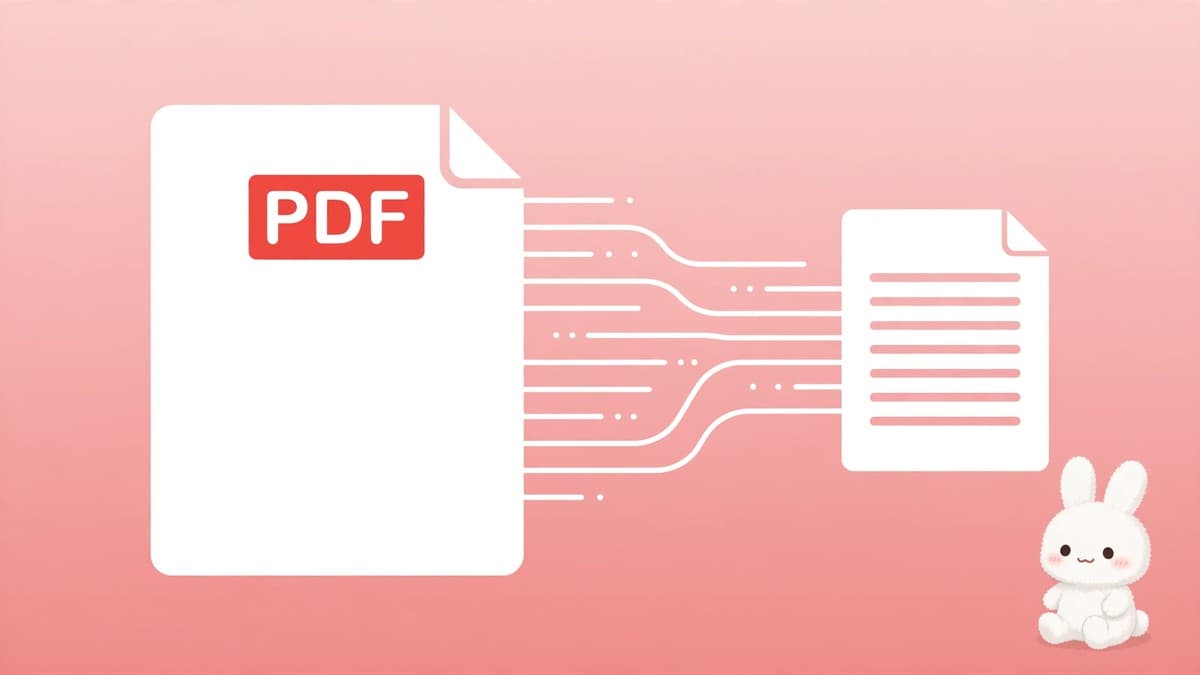
When copying from a PDF is too slow
Some PDFs are easy to copy from. You select the text, copy it, and paste it where you need it. Others are not: the words are spread across many pages or mixed in with tables, and copying turns slow and messy. When you need the words — not the layout — the fastest fix is to turn the PDF into a plain text file. BunnyPDF’s free PDF to Text tool does exactly that. It pulls the text out of your PDF and gives you a simple .txt file you can open anywhere. It is free, needs no account, and each file can be up to 50 MB.
What is PDF to Text?
A PDF to Text tool reads the text that is already inside your PDF and saves it as a plain text (.txt) file. All the formatting goes away: the fonts, the colours, the images, the tables and the page layout. What is left is only the words, in plain lines you can copy, search and edit. The .txt file opens in any text editor, in Word, in Google Docs, or in Notes on your phone.
It helps to know what the tool does not do. It does not keep your headings, your bold text or your table layout. It does not read text from a photo of a page. And it does not change your original PDF — that file stays exactly as it was. You simply get a second file, in text form, next to it.
When to turn a PDF into text
Plain text is useful in more places than people expect. Here are the most common ones:
- Reuse the words. You have a report, a contract or an article as a PDF, and you need some of its text in a Word document, an email or a form. Paste the text file’s contents instead of copying page by page.
- Search a long document. A 60-page report is hard to search inside a PDF reader on a phone. In a text file, Ctrl+F or the search in any editor finds a word in seconds.
- Pull out quotes. If you need an exact quote for an article or a reply, the text file gives you clean lines to copy, without stray line breaks from the PDF layout.
- Feed text into another app. Translation tools, grammar checkers and note apps often work better with plain text than with a PDF.
First check: is your PDF a real PDF, or a scan?
This is the one check that decides whether PDF to Text will work for you. The tool reads text that is stored inside the PDF file. Most PDFs made from Word, Google Docs or a website have that text stored in them, so the tool works straight away.
But a scanned PDF is different. A scan is a photo of a page, and a photo has no text stored in it — only pixels. PDF to Text cannot read words out of a photo, so a scanned PDF will give you an empty or nearly empty text file. If your PDF came from a scanner, or if you cannot select the text with your mouse in a PDF reader, use BunnyPDF’s free OCR tool instead. OCR reads the words from the image of each page and turns them into text you can edit. It is the right tool for scans; PDF to Text is the right tool for normal, digital PDFs.
Use BunnyPDF’s free OCR PDF tool for scanned PDFs — it reads the words from the image of each page and turns them into text you can edit.
How to convert a PDF to text
The whole job takes under a minute. Here are the steps, using BunnyPDF’s PDF to Text tool:
- Open the PDF to Text tool. Go to the tool page in your browser. It works on desktop and on mobile, and you do not need to install anything or create an account.
- Select your PDF file. Click to choose a PDF from your device. Each file can be up to 50 MB.
- Click Convert to Text. The tool scans the document for the text stored inside it and pulls it out.
- Download your TXT file. The text file is ready to download straight away. Open it in any text editor, or paste its contents into Word or Google Docs.
That is the whole process. There is nothing to set up — the file downloads directly from your browser.
What the text file will look like
Plain text is honest: what you get is exactly the words, and nothing else. A few things are worth knowing:
- Headings lose their size and bold. A heading becomes a plain line of text, the same as the lines around it. You can re-add the formatting in Word or Docs in a minute.
- Tables flatten into lines. The numbers and words from a table are all there, but the columns are gone. Read the lines in order and rebuild the table if you need one.
- Page breaks disappear. The text runs on from one page to the next. That is normal for a .txt file, and it makes searching easier.
- Odd characters can appear. Some PDFs store unusual symbols in a strange way. If a word looks wrong, check it against the original PDF before you use it.
Give the text a quick read before you paste it into anything important. It takes a minute.
Tips for a clean result
Start with a good PDF. A PDF made from Word or Docs gives the cleanest text. A PDF that has been printed and scanned several times will not — that is a job for OCR.
Work on one file at a time. If you have a very large PDF and only need part of it, extract the pages you need first, then convert just those pages to text.
Keep the text searchable. If you want to search inside the PDF itself later, read how to make a PDF searchable. It is a different job from extracting text, and it keeps the layout intact.
Does PDF to Text work on scanned PDFs?
No. A scanned PDF is a photo of a page, with no text stored inside it for the tool to read. Use the free OCR tool instead — it reads the words from the image and turns them into editable text.
Do I need an account to convert a PDF to text?
No. The tool is free and you can use it without creating an account or signing in.
What happens to the formatting in my PDF?
It is stripped out. The .txt file keeps only the words, in plain lines. Headings, bold text, colours, images and tables do not carry over. If you need the layout, keep the original PDF and use the text file alongside it.
Is there a file size limit?
Yes — each PDF can be up to 50 MB. That covers most reports, books and articles. If your file is larger, split it into smaller parts first and convert them one at a time.
If you have a PDF and you only need the words in it, convert it to text with BunnyPDF — free, in your browser, and done in under a minute.
Extract Text from PDF Online Free
To extract text from a PDF online free, open BunnyPDF’s PDF to Text tool in your browser. Upload the PDF file and the tool pulls the words out of it into a plain text file you can copy, search, or paste into another document.
It works best on PDFs made from Word, Google Docs, or a website, where the text is already part of the file. If your PDF is a scan or a photo of a page, the text is only an image — run it through the OCR PDF tool first so the words can be read.
Process PDFs securely in seconds
Merge, compress, split, convert, and organize your PDF files directly in your web browser. No software installation or sign-up needed.