
How to Turn a Scanned PDF into Editable Text with OCR (Free)
BunnyPDF Team
BunnyPDF Editorial Team
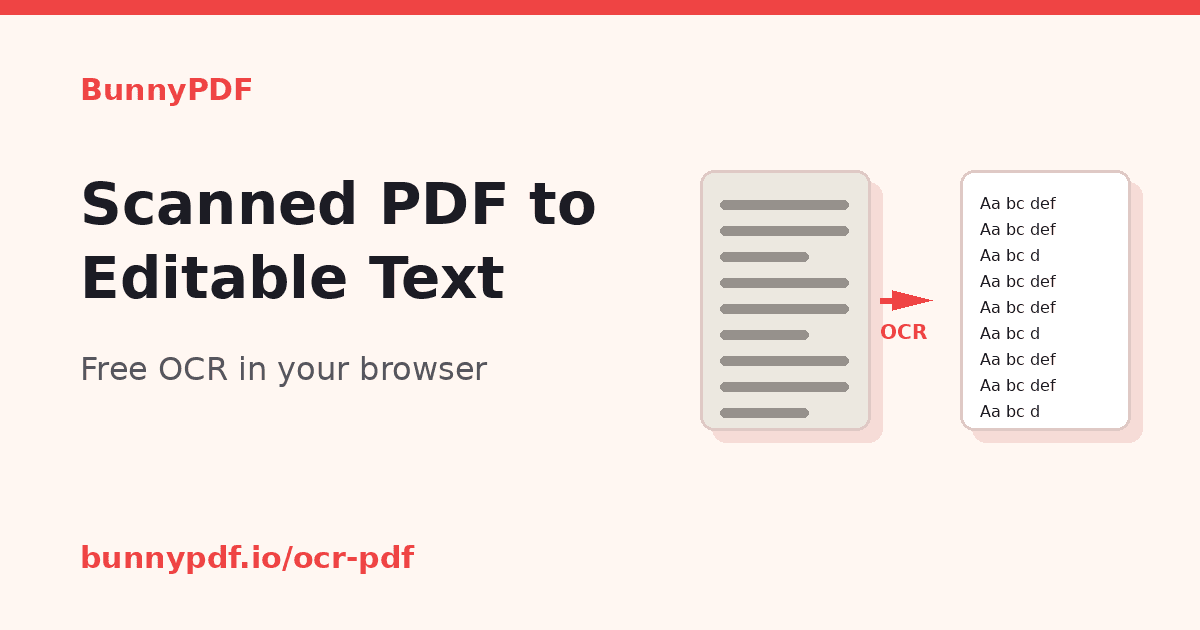
Quick answer: A scanned PDF is just a picture of a page, so you can’t edit or copy its words until OCR (optical character recognition) reads them. Open BunnyPDF OCR PDF, select your scan and click Run OCR, then download the copy. Next, open that copy in PDF to Text, click Extract Text, and copy the result or download it as a .txt file. Paste it into Word or Google Docs and edit it.
You’ve got a scanned contract, an old letter or a stack of receipts, and you need to change a few lines or reuse the wording. Retyping it all takes ages. OCR does the reading for you. This guide shows you a free, two-step way to do it in your browser, plus a Google Docs alternative, and how to fix the text afterwards.
Why you can’t edit a scanned PDF
When a page is scanned or photographed, the PDF holds an image of the page rather than real letters. Your PDF viewer can show it, but it can’t search it, select it or copy it, because there’s no text there to copy.
To check, open the PDF and try to highlight a sentence, or press Ctrl+F (Command+F on a Mac) and search for a word you can see. If nothing highlights, the page is an image and you need OCR first.
We tested this. When we ran BunnyPDF’s PDF to Text tool on a plain scanned file, it returned blank pages. The tool itself warns that it only extracts existing text and points you to OCR PDF for scanned images.
Searchable PDF or editable text: which do you need?
OCR can give you two different results, so decide which one you need first:
- A searchable PDF. The page still looks like the original scan, but an invisible text layer sits on top, so you can search it and copy from it. Use this when you need to keep the original document. Our guide on how to make a PDF searchable covers this in detail.
- Editable text. The words come out as plain text that you can rewrite, reformat and reuse in a new document. That’s what this guide covers.
With BunnyPDF, you get the searchable PDF first, then pull the editable text out of it.
Step 1: Run OCR on your scanned PDF
- Go to bunnypdf.io/ocr-pdf. There’s nothing to install and you don’t need an account.
- Click Select Files and choose your scanned PDF. The tool accepts PDF files and states a limit of 50 MB per file. In our test it processed one file at a time.
- Click Run OCR. The page notes that processing may take a few seconds per page, so keep the tab open.
- When Ready to download appears, you can rename the file. By default it’s called
ocr_followed by your original file name. Click Download.
You now have a searchable copy of your scan. The original file isn’t changed.
Step 2: Extract the text
- Go to bunnypdf.io/pdf-to-text.
- Select the
ocr_file you just downloaded. Use this new copy, not the original scan. - Click Extract Text. A preview appears.
- Click Copy to copy all the text, or Download .txt to save it as a plain text file.
The text is split by page, with a marker such as --- Page 1 --- at the start of each page.
Step 3: Paste it into Word or Google Docs and tidy it up
Paste the text into a new Word or Google Docs file. It’s plain text, so fonts, bold, tables and images don’t come across. Expect to do some cleaning up:
- Line breaks. In our test, each page’s lines came out joined into one long paragraph. Press Enter where you want new lines or paragraphs.
- Extra spaces. Some words were separated by two or three spaces. Use Find and Replace to swap double spaces for single spaces, and repeat until nothing is found.
- Page markers. Delete the
--- Page 1 ---lines if you don’t need them. - Numbers, names and dates. OCR can misread characters, such as
0andO, or1andl. Check every figure against the original scan before you rely on it.
When you’re done editing, you can turn a Word file back into a PDF with Word to PDF.
Get better OCR results
OCR is only as good as the scan you give it. A few things help:
- Scan straight and upright. If pages are sideways or upside down, fix them with Rotate PDF before you run OCR.
- Use clear, high-contrast scans. Dark text on a plain, light background with even lighting works best. Blurry phone photos and faint photocopies produce more mistakes.
- Split very long scans. If a large file is slow in your browser, break it into smaller parts with Split PDF and run OCR on each part.
- Know the language limits. There’s no language picker, and in our test the tool loaded an English language model. Expect the best results with English text.
- Printed text works best. Handwriting is much harder for OCR to read, so check it carefully.
Is it safe to OCR private documents in your browser?
When you select a PDF from your device, BunnyPDF says it processes the file locally in your browser and doesn’t upload it to its servers. That matched our test. While OCR ran, the browser downloaded the OCR engine and an English language file from a public code CDN (cdn.jsdelivr.net), but none of the requests sent our PDF to BunnyPDF or anywhere else. PDF to Text behaved the same way.
The tool pages also have a URL option for importing a PDF from a web link. That option fetches the file through BunnyPDF’s server, so for private documents, select the file from your device instead.
The alternative: open the PDF with Google Docs
If you already use Google Drive, it has OCR built in. Google’s help page describes the steps (Google Drive Help):
- Upload the PDF to Google Drive.
- Right-click the file and choose Open with > Google Docs.
Google says the file should be 2 MB or smaller and right side up. Bold, italics, font size and line breaks are likely to be kept, but lists, tables, columns and footnotes probably won’t be detected. Google Drive also detects the document’s language and supports a long list of languages (Google Drive Help).
Which should you use? Use Google Docs if your scan is small, isn’t in English, or you want some formatting kept. Use BunnyPDF if the file is bigger than 2 MB, you don’t want to upload it to a cloud account, or you also want a searchable PDF copy.
Turn your scan into text now
You don’t need to retype the whole thing. Run your scan through OCR PDF, pull the words out with PDF to Text, and you’ll have editable text in a couple of minutes.
Can I edit a scanned PDF directly?
Not as it is. A scanned PDF holds images of pages, so there’s no text to edit. Run OCR first to recognize the words, then extract the text and edit it in Word or Google Docs.
Is BunnyPDF OCR free?
Yes. OCR PDF and PDF to Text are free to use in your browser with no account. The tool pages state a limit of 50 MB per PDF.
Why does PDF to Text return blank pages for my scan?
Because the scan has no text layer yet. PDF to Text only extracts text that already exists. Run the file through OCR PDF first, then use PDF to Text on the new copy.
Will the extracted text keep my formatting?
No. PDF to Text gives you plain text, so fonts, tables and images aren’t included, and you may need to fix line breaks and spacing. Google Docs may keep some basic formatting such as bold and italics.
Is my scanned PDF uploaded to BunnyPDF?
No, not when you select the file from your device. OCR runs in your browser. The URL import option fetches a file from the web through BunnyPDF’s server.
If your PDF is not a scan — if it was made from Word, Google Docs or a website and the text can be selected — you do not need OCR at all. Convert the PDF to text instead: it pulls the words straight out of the file and gives you a plain .txt file in under a minute.
Convert Scanned PDF to Text Online Free
To convert a scanned PDF to text online free, open BunnyPDF’s OCR PDF tool in your browser. Upload the scanned PDF, and the tool reads the words in the image and turns them into text you can copy, edit, and search.
Wondering how to copy text from a scanned PDF? Once the OCR step is done, select the text and copy it into Word, Google Docs, or anywhere else you need it. If the PDF already has real text in it — made from Word or a website, not a scan — skip OCR and use the PDF to Text tool instead, which pulls the words straight out of the file.
Process PDFs securely in seconds
Merge, compress, split, convert, and organize your PDF files directly in your web browser. No software installation or sign-up needed.